
Data Management

CSV Import

Add many gymnasts and coaches at once from a CSV file. No more typing names one by one.

Import your data in three simple steps

Download a template, fill it with your data, then upload it. The system checks everything and shows you what needs to be fixed before you import.
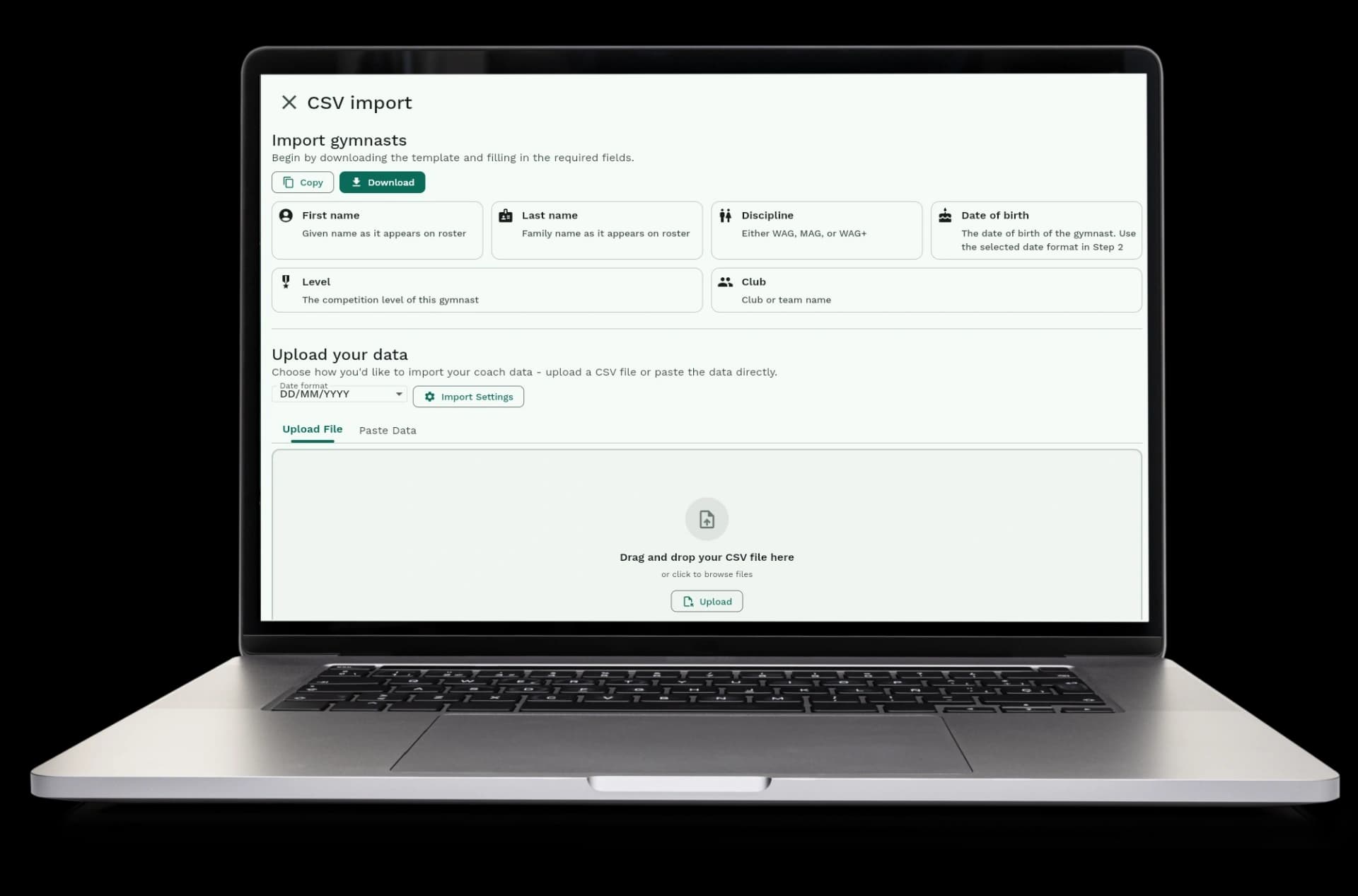
  • Download a template: get a ready-to-use CSV file with example data
  • Fill in your data: add names, dates, clubs, levels, and other information
  • Upload your file: paste your data or upload the CSV file
  • Review and fix: see all your data in a table and fix any errors before importing
Import your data in three simple steps

The system checks everything for you

Before you import, the system checks all your data. It finds missing information, wrong dates, and other problems. You can fix everything before importing.
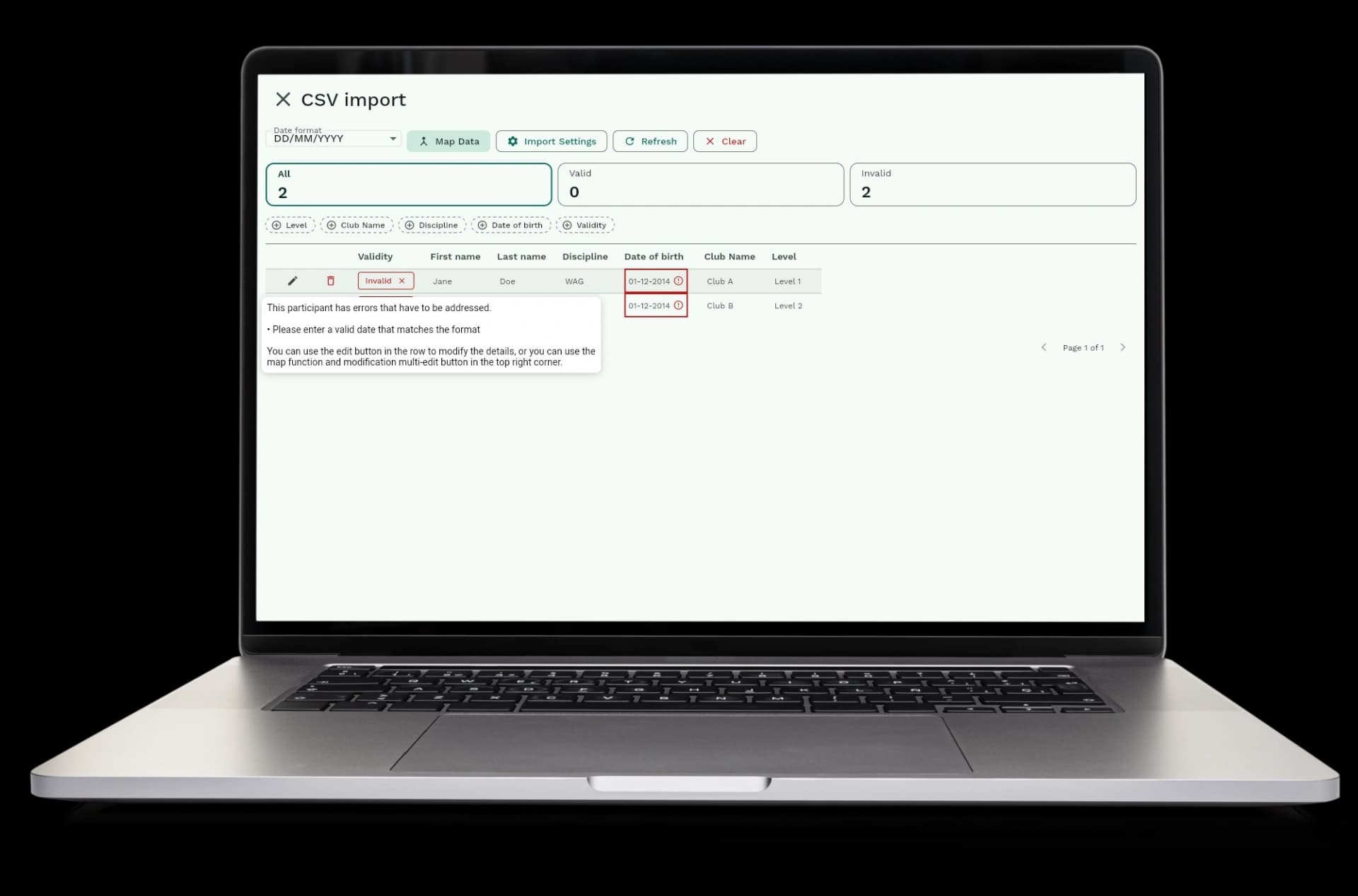
  • See errors right away: problems are shown in red so you can find them quickly
  • Check dates: the system makes sure dates are in the right format and not in the future
  • Check required fields: the system tells you if important information is missing
  • Check levels and disciplines: the system makes sure levels and disciplines match your meet
  • Fix errors before importing: you can edit data directly in the table before importing
The system checks everything for you

Map your data and set up your file format

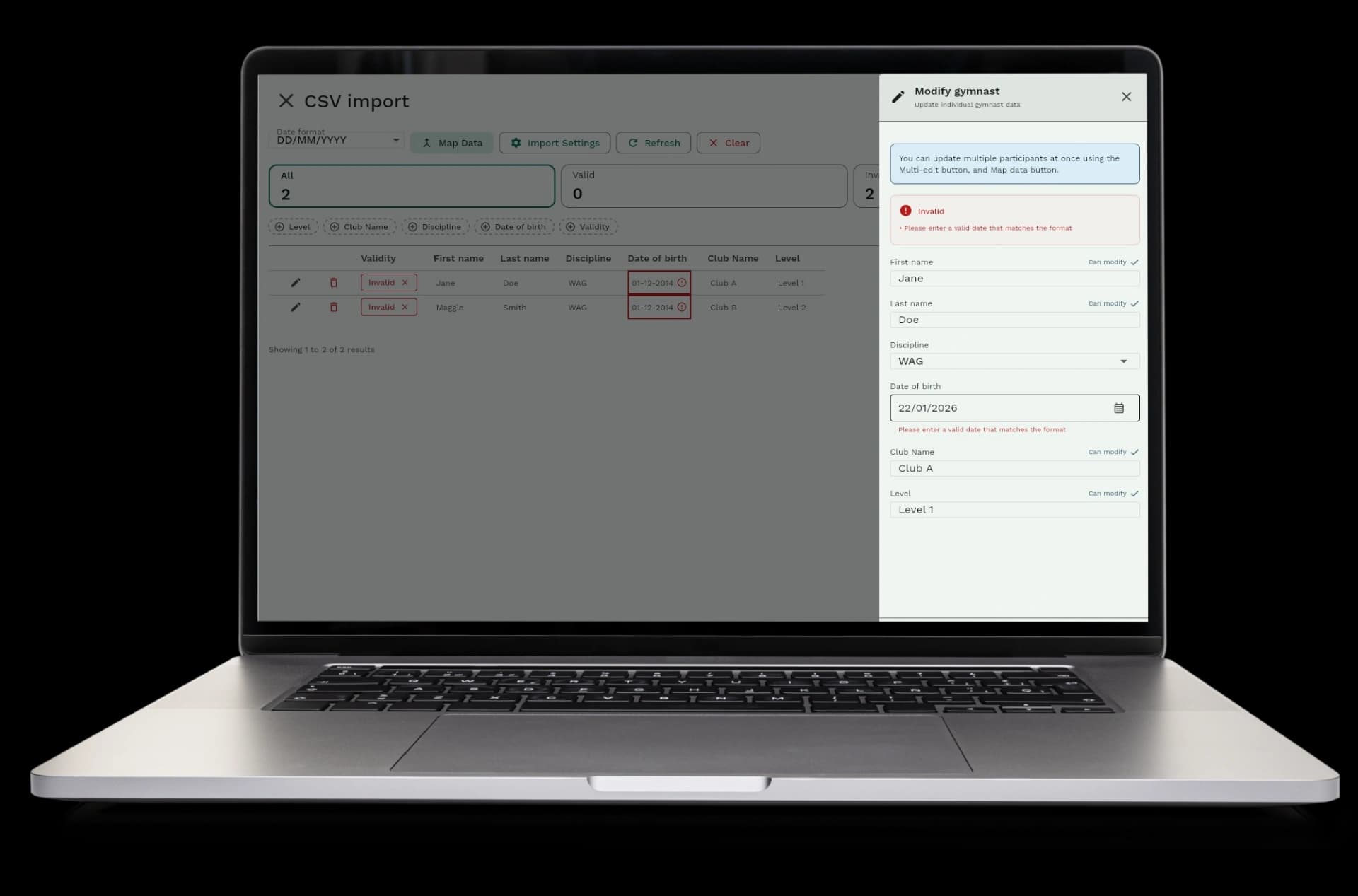
If your CSV file uses different names for levels, clubs, or disciplines, you can map them to the right values. You can also change the delimiter, date format, encoding, and other options to match your file.
  • Map level names: change all instances of one level name to another
  • Map club names: fix club name spelling or change names to match your meet
  • Map disciplines: convert discipline abbreviations to match your meet
  • Choose your delimiter: use comma, semicolon, or tab to separate columns
  • Set date format: choose how dates are written in your file (like DD/MM/YYYY or MM/DD/YYYY)
Map your data and set up your file format

Edit data while you import

You can edit any field directly in the import table. Fix names, dates, levels, and other information without leaving the import screen.
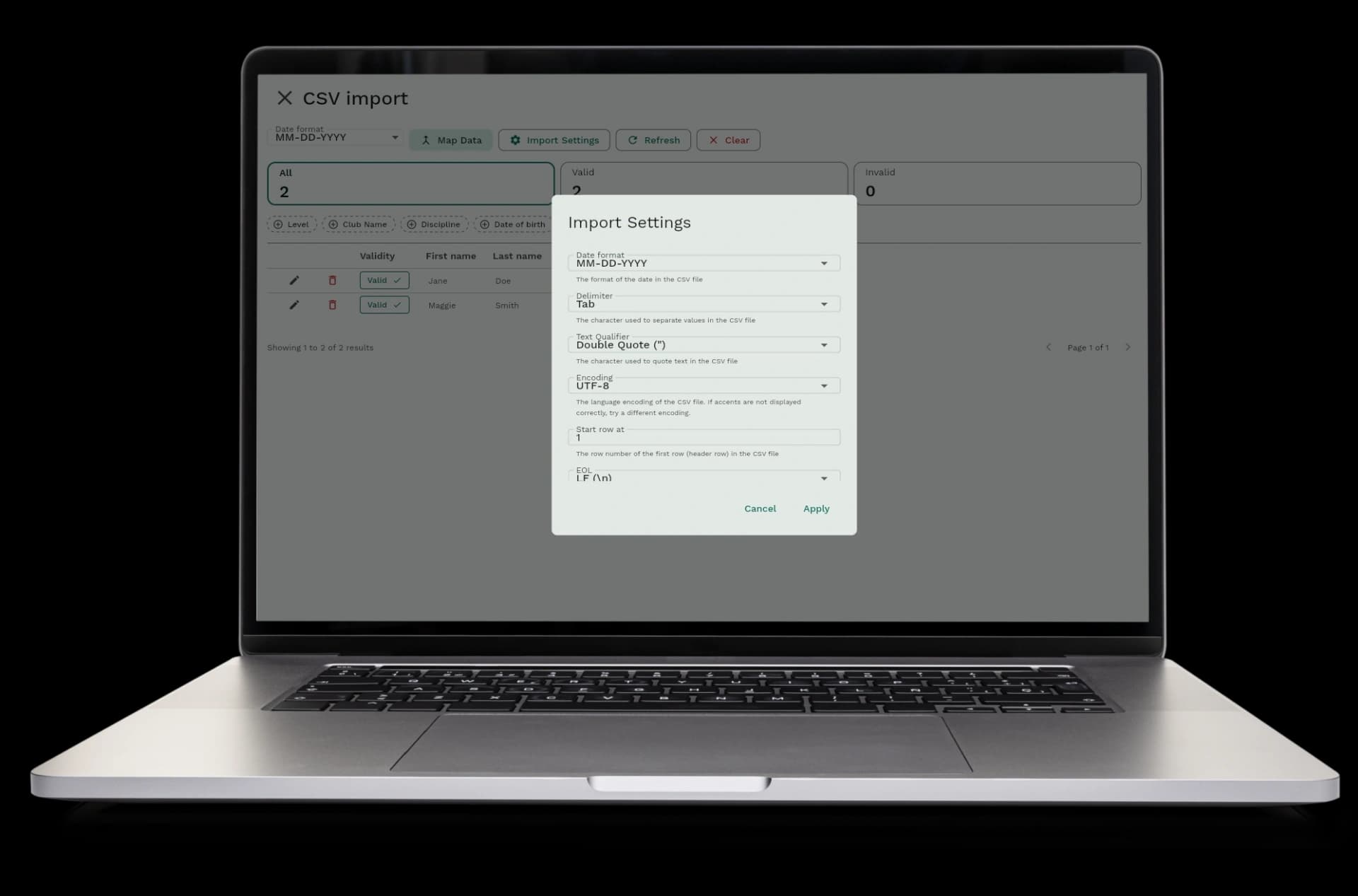
  • Edit in the table: click any cell to edit it right there
  • Edit in a drawer: open a drawer to edit all fields for one person at once
  • See validation in real time: errors disappear as you fix them
  • Edit custom fields: add or change custom field values during import
  • Save changes: your edits are saved as you make them
Edit data while you import

How CSV import works

Importing from CSV is simple. Download a template, add your data, upload it, review it, and import.
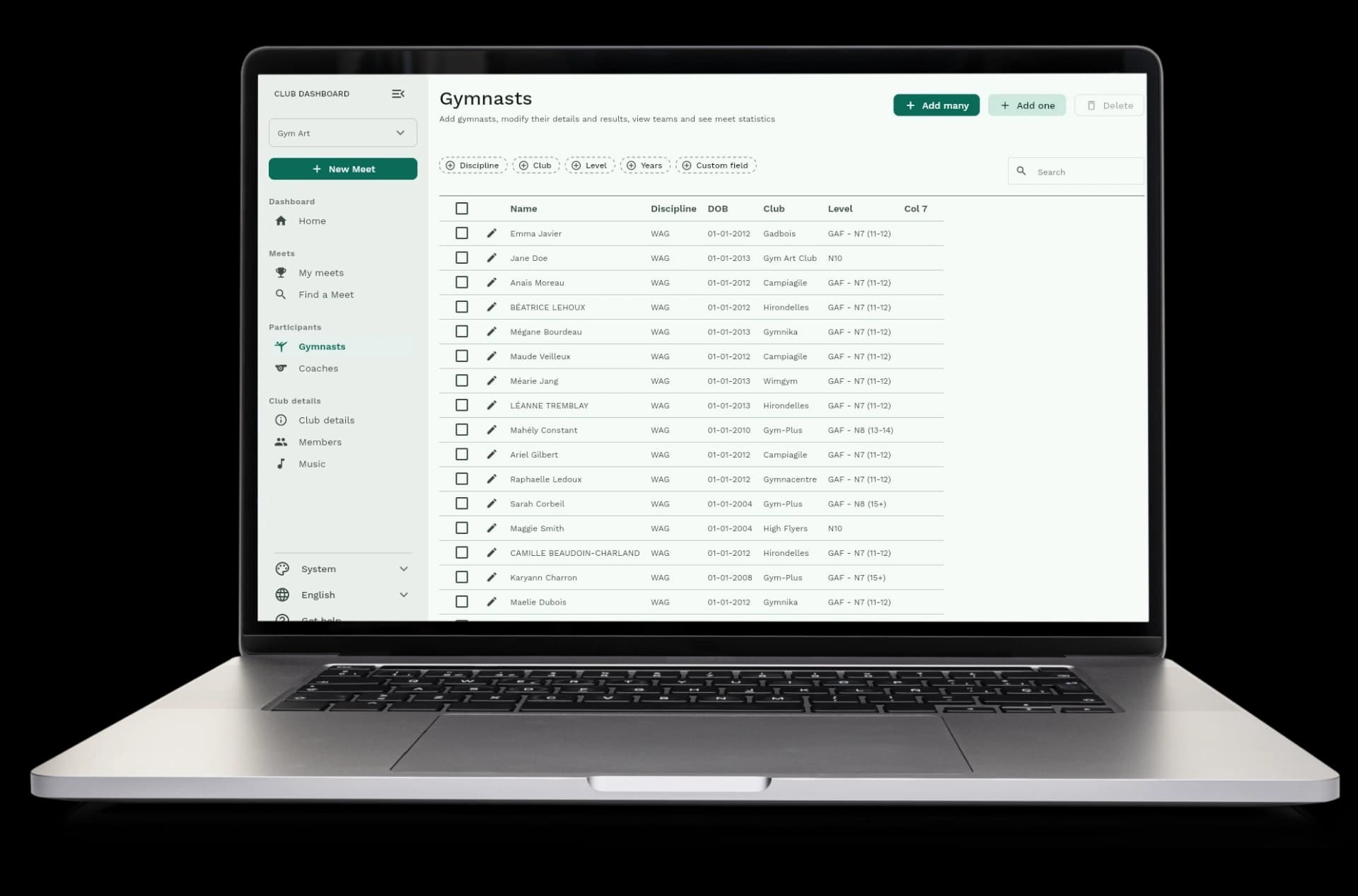
  • Step 1: Download a CSV template or use your own CSV file
  • Step 2: Fill in your data with names, dates, clubs, levels, and other information
  • Step 3: Upload your CSV file or paste your data directly
  • Step 4: Review your data in the table and fix any errors
  • Step 5: Map field values if needed (levels, clubs, disciplines)
  • Step 6: Adjust import settings if your file format is different
  • Step 7: Import all your data at once
How CSV import works

Automatic validation and import options

The system checks your data automatically as soon as you upload it, and you can import both gymnasts and coaches from CSV files. Each type has its own template and import process.
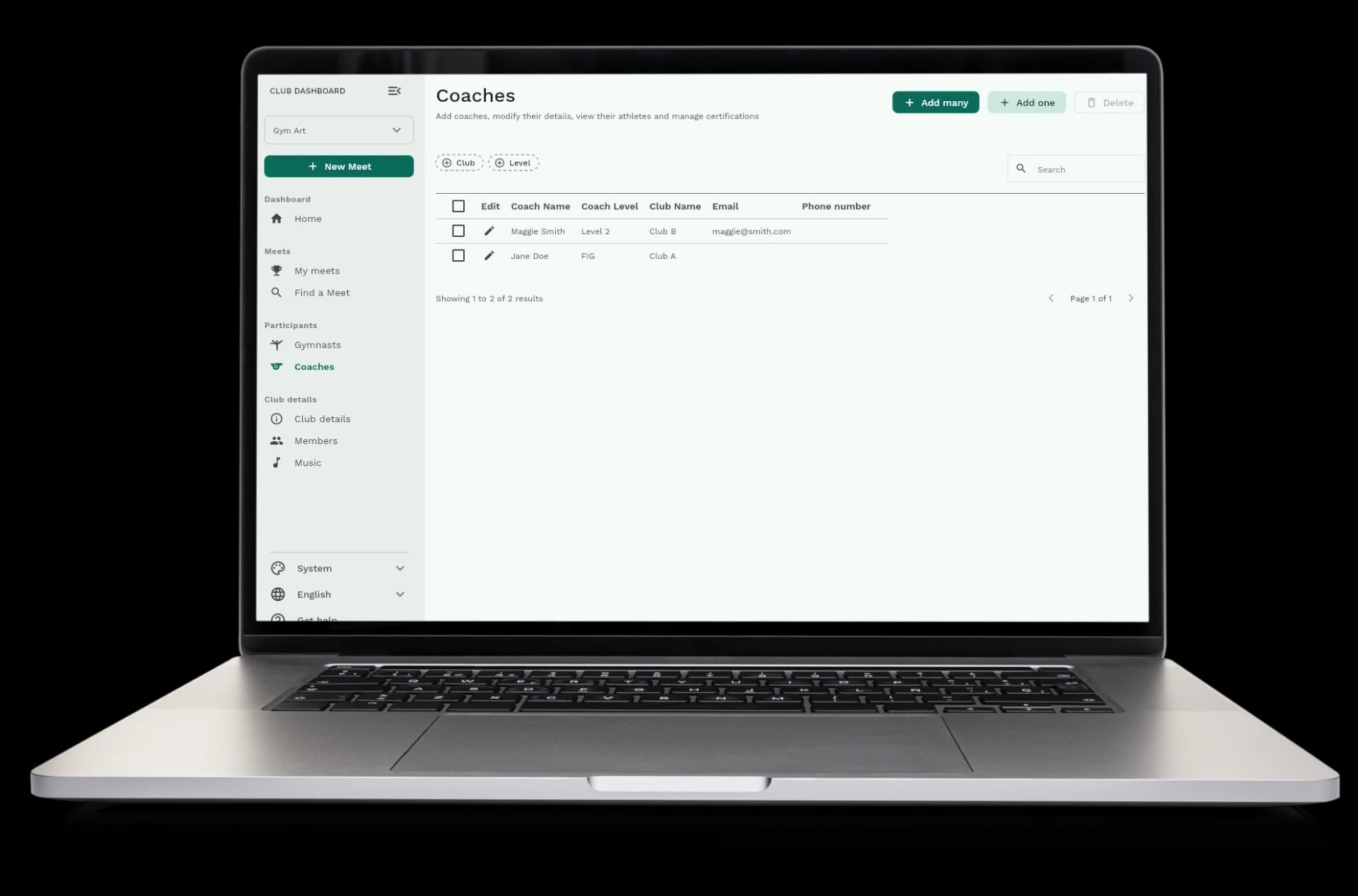
  • Automatic validation: every field is checked as soon as you upload your file
  • Automatic error detection: problems are found and shown to you immediately
  • Import gymnasts: add many gymnasts at once with names, dates, clubs, levels, and disciplines
  • Import coaches: add many coaches at once with names, clubs, levels, and contact information
  • Import to your club or meet: add people to your club database or directly to a meet registration
Automatic validation and import options

Available in Gym Art Meets

CSV import is part of Gym Art Meets, our meet management platform.